<!DOCTYPE html>
	<html lang="vi" xmlns="http://www.w3.org/1999/xhtml" prefix="og: http://ogp.me/ns#">
	<head>
<title>Hướng dẫn chuyển code từ local lên host</title>
<meta name="description" content="Hướng dẫn chuyển code từ local lên host - Savefile - Tin tức - https&#x3A;&#x002F;&#x002F;theanhgroup.com&#x002F;tin-tuc&#x002F;savefile&#x002F;thiet-ke-web&#x002F;huong-dan-chuyen-code-tu-local-len-host-195.html">
<meta name="author" content="Thế Anh Group">
<meta name="copyright" content="Thế Anh Group">
<meta name="robots" content="index, archive, follow, noodp">
<meta name="googlebot" content="index,archive,follow,noodp">
<meta name="msnbot" content="all,index,follow">
<meta name="geo.region" content="VN-SG">
<meta name="geo.placename" content="Ho Chi Minh">
<meta name="geo.position" content="10.833111;106.641224">
<meta name="generator" content="NukeViet v4.0">
<meta name="viewport" content="width=device-width, initial-scale=1">
<meta name="theme-color" content="#00b456">
<meta name="msapplication-navbutton-color" content="#00b456">
<meta name="apple-mobile-web-app-capable" content="yes">
<meta name="apple-mobile-web-app-status-bar-style" content="#00b456">
<meta http-equiv="Content-Type" content="text/html; charset=utf-8">
<meta property="og:title" content="Hướng dẫn chuyển code từ local lên host">
<meta property="og:type" content="website">
<meta property="og:description" content="Savefile - Tin tức - https&#x3A;&#x002F;&#x002F;theanhgroup.com&#x002F;tin-tuc&#x002F;savefile&#x002F;thiet-ke-web&#x002F;huong-dan-chuyen-code-tu-local-len-host-195.html">
<meta property="og:site_name" content="Thế Anh Group - Hosting - Domain - VPS">
<meta property="og:image" content="https://theanhgroup.com/uploads/bnn-tag.jpg">
<meta property="og:url" content="https://theanhgroup.com/tin-tuc/thiet-ke-web/huong-dan-chuyen-code-tu-local-len-host-195.html">
<link rel="shortcut icon" href="https://theanhgroup.com/favicon.ico">
<link rel="preload" as="script" href="https://theanhgroup.com/assets/js/jquery/jquery.min.js">
<link rel="preload" as="script" href="https://theanhgroup.com/assets/js/language/vi.js">
<link rel="preload" as="script" href="https://theanhgroup.com/assets/js/global.js">
<link rel="preload" as="script" href="https://theanhgroup.com/themes/theanhgroup/js/news.js">
<link rel="preload" as="script" href="https://theanhgroup.com/themes/theanhgroup/js/main.js">
<link rel="preload" as="script" href="https://theanhgroup.com/OneSignalSDKWorker.js">
<link rel="preload" as="script" href="https://theanhgroup.com/OneSignalSDKUpdaterWorker.js">
<link rel="preload" as="script" href="https://cdn.onesignal.com/sdks/OneSignalSDK.js">
<link rel="preload" as="script" href="https://theanhgroup.com/themes/theanhgroup/js/intersection-observer.js">
<link rel="preload" as="script" href="https://theanhgroup.com/themes/theanhgroup/js/lazyload.min.js">
<link rel="preload" as="script" href="https://theanhgroup.com/themes/theanhgroup/js/bootstrap.min.js">
<link rel="stylesheet" href="https://theanhgroup.com/stylesheet/css/all.css">
<style>
	body{background: #fff;}
</style>
<script data-show="inline">(function(i,s,o,g,r,a,m){i['GoogleAnalyticsObject']=r;i[r]=i[r]||function(){
(i[r].q=i[r].q||[]).push(arguments)},i[r].l=1*new Date();a=s.createElement(o),
m=s.getElementsByTagName(o)[0];a.async=1;a.src=g;m.parentNode.insertBefore(a,m)
})(window,document,'script','https://www.google-analytics.com/analytics.js','ga');
ga('create', 'UA-101091287-1', '.theanhgroup.com');
ga('send', 'pageview');
</script>
</head>
	<body >
<div id="print">
	<div id="hd_print">
		<h2 class="pull-left">Thế Anh Group - Hosting - Domain - VPS</h2>
		<p class="pull-right"><a title="Thế Anh Group - Hosting - Domain - VPS" href="https://theanhgroup.com/">https://theanhgroup.com</a></p>
	</div>
	<div class="clear"></div>
	<hr />
	<div id="content">
		<h1>Hướng dẫn chuyển code từ local lên host</h1>
		<ul class="list-inline">
			<li>Thứ năm - 01/08/2019 21:30</li>
			<li class="hidden-print txtrequired"><em class="fa fa-print">&nbsp;</em><a title="In ra" href="javascript:;" onclick="window.print()">In ra</a></li>
			<li class="hidden-print txtrequired"><em class="fa fa-power-off">&nbsp;</em><a title="Đóng cửa sổ này" href="javascript:;" onclick="window.close()">Đóng cửa sổ này</a></li>
		</ul>
		<div class="clear"></div>
		<div id="hometext">
			Để chuyển một code bất kỳ từ máy tính lên host để chạy bạn cần cấu hình như thế nào ? Dưới đây là bài viết hướng dẫn chuyển code từ local lên host sử dụng xampp
		</div>
		<div id="bodytext" class="clearfix">
			Đầu tiên bạn cần truy cập vào thư mục code nén tất cả các tập tin lại, sau đó bạn tiến hành truy cập myphpadmin để xuất file cơ sở dữ liệu ra
<h2>Nén các file dữ liệu tập tin code</h2>
Truy cập vào đường link chưa code:&nbsp;C:\xampp\htdocs\conhantao Thư mục chứa code của mình là &quot;conhantao&quot; bạn truy cập vào bên trong và nén lại dạng code.zip như hình

<div style="text-align:center">
<figure class="image" style="display:inline-block"><img alt="nén thư mục chứa code conhantao" height="550" src="https://theanhgroup.com/uploads/tin-tuc/2019_08/nen-thu-muc-chua-code-conhantao.jpg" width="637" />
<figcaption>nén thư mục chứa code conhantao</figcaption>
</figure>
</div>
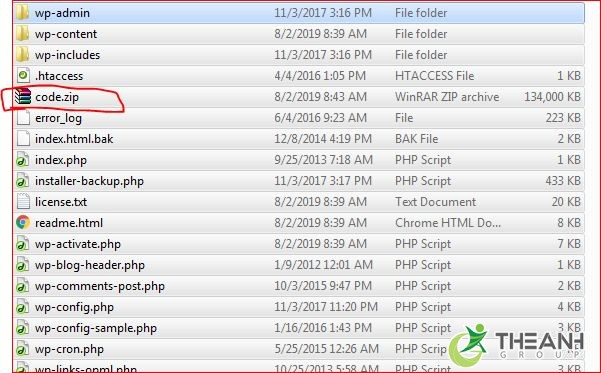
Sau khi nén trong thư mục <strong>xampp </strong>bạn sẽ thấy 1 file code.zip trong thu mục:

<div style="text-align:center">
<figure class="image" style="display:inline-block"><img alt="code ở local" height="373" src="https://theanhgroup.com/uploads/tin-tuc/2019_08/code-o-local.jpg" width="601" />
<figcaption>code ở local</figcaption>
</figure>
</div>

<h2>Backup mysql để xuất đưa lên host</h2>
Bạn mở bật Xampp control panel lên, và bấm vào &quot;admin&quot; lúc này của sổ phpmyadmin hiện lên cho các bạn backup cơ sở dữ liệu đang chạy local.

<div style="text-align:center">
<figure class="image" style="display:inline-block"><img alt="xampp control panel" height="425" src="https://theanhgroup.com/uploads/tin-tuc/2019_08/xampp-control-panel.jpg" width="658" />
<figcaption>xampp control panel</figcaption>
</figure>
</div>
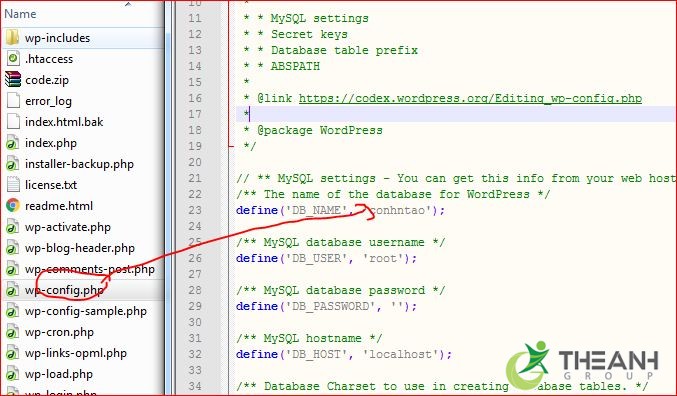
Cửa sổ&nbsp;http://localhost/phpmyadmin/ hiện lên bạn chọn database đang chạy demo. Để biết đích xác bạn đang chạy cơ sở dữ liệu nào cho demo cách đơn giản là bạn truy cập vào thu mục code xem file config.php tên cơ sở dữ liệu là gì ?

<div style="text-align:center">
<figure class="image" style="display:inline-block"><img alt="tìm tên cơ sở dữ liệu để xuất" height="396" src="https://theanhgroup.com/uploads/tin-tuc/2019_08/tim-ten-co-so-du-lieu-de-xuat.jpg" width="677" />
<figcaption>tìm tên cơ sở dữ liệu để xuất</figcaption>
</figure>
</div>
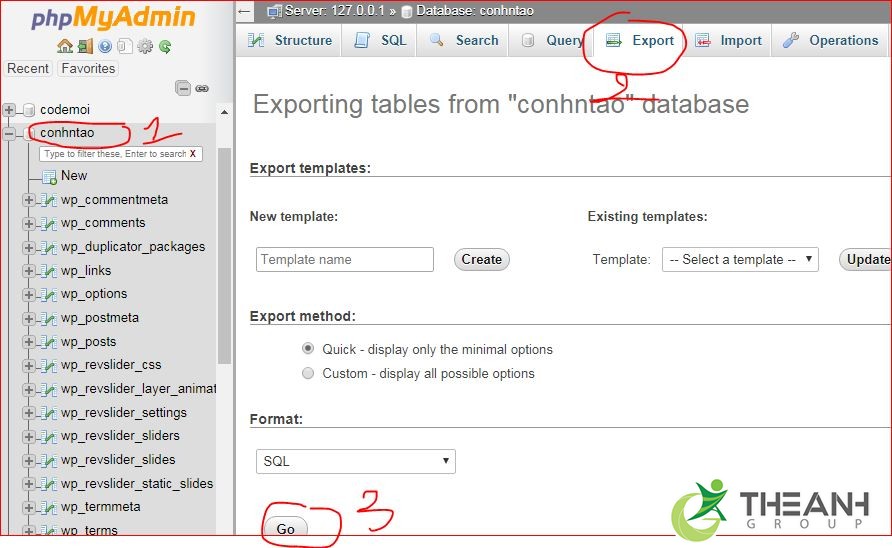
Sau khi biết được tên cở sở dữ liệu bạn tiến hành xuất cơ sở dữ liệu để lưu lại:

<div style="text-align:center">
<figure class="image" style="display:inline-block"><img alt="Xuất cơ sở dữ liệu trên localhost" height="405" src="https://theanhgroup.com/uploads/tin-tuc/2019_08/xuat-co-so-du-lieu-localhost.jpg" width="659" />
<figcaption>Xuất cơ sở dữ liệu trên localhost</figcaption>
</figure>
</div>
Lưu ý ở đây mình dùng Note++ và Xampp. Nếu bạn nào chưa biết cách xài hai công cụ này vui lòng tham khảo linh <strong><a href="https://theanhgroup.com/xampp-la-gi-cach-cai-dat-localhost-tren-may-tinh-bang-xampp.html"><span style="color:rgb(46, 204, 113);">hướng dẫn xampp</span></a></strong>&nbsp;để rõ cách xài.<br  />
<br  />
Sau khi hoàn thành hai bước backup code zip và xuất cơ sở dữ liệu bạn tiến hành up lên host. Mình sẽ sử dụng 1 tên miền để demo cho các bạn. tên miền mình : <strong>demo.com.vn</strong> nhé. Mình sẽ chia làm hai bước :<strong> up code, database&nbsp; lên host và cấu hình code chạy web</strong>.&nbsp;<br  />
Vấn đề cấu hình tên miền hay cấu hình host để chạy https đã có hướng dẫn ở bài trước. Bạn có thể tham khảo &quot;Hướng dẫn cài let&#039;s ssl cho directadmin&quot; ở bài trước nhé.
<h2>Hướng dẫn up code, data từ localhost lên host</h2>

<p>Để upload code và data lên host bạn cần đăng nhập vào host, tạo database đăng nhập vào data, dưới đây là hướng dẫn đăng nhập host, tạo data.</p>

<h3>Đăng nhập upload code từ local lên host</h3>
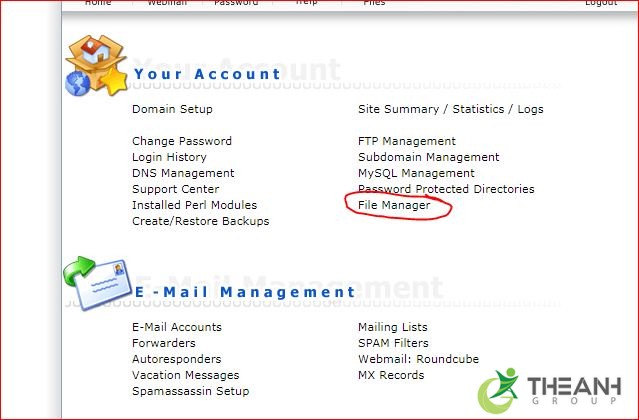
Bạn đăng nhập vào host với user, pas được nhà cung cấp gửi cho bạn, tiếp đến bạn truy cập vào file manager

<div style="text-align:center">
<figure class="image" style="display:inline-block"><img alt="Up code từ localhost" height="420" src="https://theanhgroup.com/uploads/tin-tuc/2019_08/up-code-tu-local-len-host.jpg" width="639" />
<figcaption>Up code từ localhost</figcaption>
</figure>
</div>
truy xuất vào quản lý tập tin, bạn tiếp tục click vào thư mục &quot;Public_html&quot; đây là nơi chứa code, hiển thị website của bạn.

<div style="text-align:center">
<figure class="image" style="display:inline-block"><img alt="Truy cập thư mục chứa code" height="300" src="https://theanhgroup.com/uploads/tin-tuc/2019_08/truy-cap-thu-muc-chua-code.jpg" width="640" />
<figcaption>Truy cập thư mục chứa code</figcaption>
</figure>
</div>
Lúc này host sẽ hiển thị các file mặc định, bạn check chọn và xóa hết các file mặc định của host. Lưu ý là xóa bên trong thư mục&nbsp;Public_html&quot;. Xóa ngoài là đi luôn cả host bạn nhé. Xem hình minh họa bên dưới:

<div style="text-align:center">
<figure class="image" style="display:inline-block"><img alt="Xóa file mặc định host" height="275" src="https://theanhgroup.com/uploads/tin-tuc/2019_08/xoafile-mac-dinh-host.jpg" width="675" />
<figcaption>Xóa file mặc định host</figcaption>
</figure>
</div>
Hãy làm trình tự các bước từ 1-2-3 nhé. Khi bạn hoàn thành xóa các file mặc định, lúc này bạn tiến hành upload code từ local.<br  />
lick vào nút &quot;Upload files to current directory&quot; để tiến hành upload file code.zip nhé bạn
<div style="text-align:center">
<figure class="image" style="display:inline-block"><img alt="upload localhost lên host" height="209" src="https://theanhgroup.com/uploads/tin-tuc/2019_08/upload-localhost-len-host.jpg" width="696" />
<figcaption>upload localhost lên host</figcaption>
</figure>
</div>
Cửa sổ upload mở ra bạn tiến hành chọn file để upload lên. Quá trình up code từ local lên thường mất 2-5 phút tùy vào dung lượng code bạn xây dựng ở local.

<div style="text-align:center">
<figure class="image" style="display:inline-block"><img alt="Upload code từ local" height="215" src="https://theanhgroup.com/uploads/tin-tuc/2019_08/upload-code-tu-local.jpg" width="716" />
<figcaption>Upload code từ local</figcaption>
</figure>
</div>
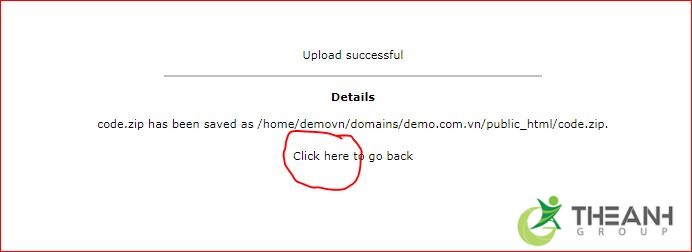
Sau khi quá trình upload code thành công cửa sổ sẽ báo bạn. Lúc này hãy click vào liên kết để xem và tiến hành giải nén code vừa upload lên.<br  />
<br  />
Tại sao mình không hướng dẫn update từng file code, hay dùng ftp vì nó quá mất thời gian, có rất nhiều file nên thời gian lựa chọn của bạn mất rất nhiều thời gian và công sức.&nbsp;
<div style="text-align:center">
<figure class="image" style="display:inline-block"><img alt="upload code len host hoan thanh" height="252" src="https://theanhgroup.com/uploads/tin-tuc/2019_08/upload-code-len-host-hoan-thanh.jpg" width="692" />
<figcaption>Upload code từ local hoàn thành</figcaption>
</figure>
</div>
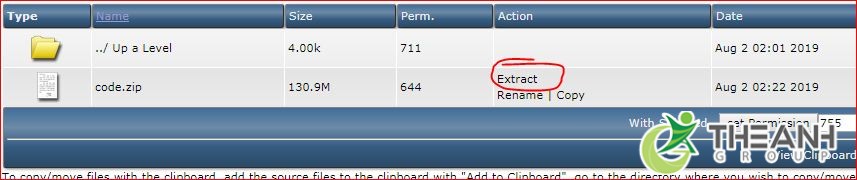
Hình bên dưới là <strong>giải nén code trên host</strong>:

<div style="text-align:center">
<figure class="image" style="display:inline-block"><img alt="Giải nén code trên host" height="139" src="https://theanhgroup.com/uploads/tin-tuc/2019_08/giai-nen-code-tren-host.jpg" width="662" />
<figcaption>Giải nén code trên host</figcaption>
</figure>
</div>
&nbsp;

<div style="text-align:center">
<figure class="image" style="display:inline-block"><img alt="Giải nén code trên host 1" height="337" src="https://theanhgroup.com/uploads/tin-tuc/2019_08/giai-nen-code-tren-host-1.jpg" width="647" />
<figcaption>Giải nén code trên host 2</figcaption>
</figure>
</div>
Khi giải nén hoàn thành bạn sẽ được code như hình dưới đây:

<div style="text-align:center"><img alt="code giai nen tren host" height="383" src="https://theanhgroup.com/uploads/tin-tuc/2019_08/code-giai-nen-tren-host.jpg" width="621" /></div>

<h3>Tạo database và upload</h3>
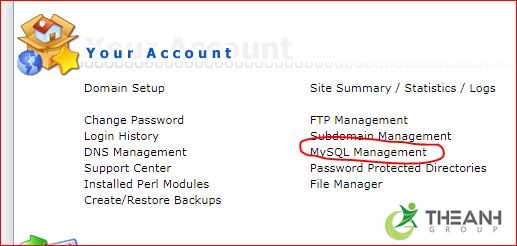
Để tạo database và upload lên host bạn cần truy cập vào bản cơ sở dữ liệu tạo user đăng nhập. Đầu tiên bạn truy cập &quot;Mysql&nbsp; managerment&quot;

<div style="text-align:center">
<figure class="image" style="display:inline-block"><img alt="Tạo cơ sở dữ liệu" height="246" src="https://theanhgroup.com/uploads/tin-tuc/2019_08/tao-co-so-du-lieu.jpg" width="517" />
<figcaption>Tạo cơ sở dữ liệu</figcaption>
</figure>
</div>
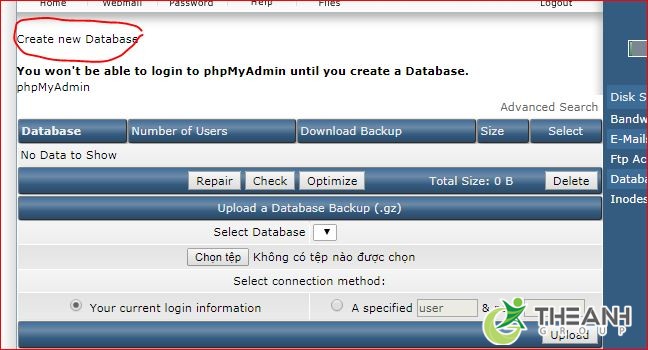
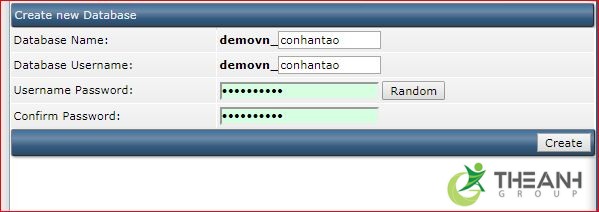
Tiếp đó bạn lick vào &quot;create database&quot; để tạo 1 user đăng nhập cơ sở dữ liệu

<div style="text-align:center">
<figure class="image" style="display:inline-block"><img alt="Create database" height="350" src="https://theanhgroup.com/uploads/tin-tuc/2019_08/create-database.jpg" width="648" />
<figcaption>Tạo cơ sở dữ liệu 2</figcaption>
</figure>
</div>
Tạo cơ sở dữ liệu trên host:

<div style="text-align:center"><img alt="tao co so du lieu tren host" height="212" src="https://theanhgroup.com/uploads/tin-tuc/2019_08/tao-co-so-du-lieu-tren-host.jpg" width="599" /></div>
&nbsp;

<div style="text-align:center"><img alt="tao co so du lieu tren host 1" height="228" src="https://theanhgroup.com/uploads/tin-tuc/2019_08/tao-co-so-du-lieu-tren-host-1.jpg" width="601" /></div>
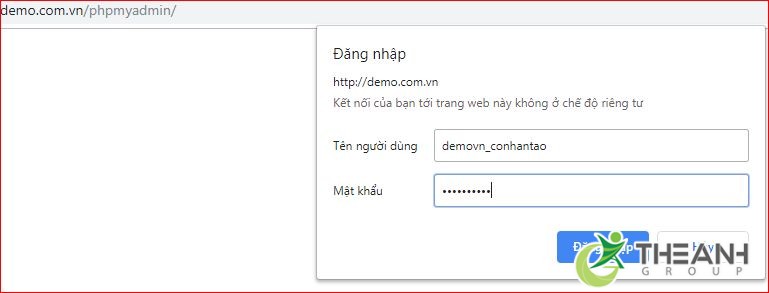
Sau khi tạo cơ sở dữ liệu xong, Bạn truy cập vào link: demo.com.vn/phpmyadmin để đăng nhập và upload cơ sở dữ liệu với user, pas vừa tạo bên trên. Lưu ý: demo.com.vn thay thế bằng tên miền của bạn nhé. Áp ụng cho host Diẻctadmin

<div style="text-align:center">
<figure class="image" style="display:inline-block"><img alt="Truy cập phpmyadmin" height="263" src="https://theanhgroup.com/uploads/tin-tuc/2019_08/truy-cap-phpmyadmin.jpg" width="689" />
<figcaption>Truy cập phpmyadmin</figcaption>
</figure>
</div>
Sau khi cửa sổ đăng nhập data thành công, bạn tiến hành import database với 4 bước sau: chọn data, chọn import, chọn file cơ sở dữ liệu, bước cuối là bấm GO

<div style="text-align:center">
<figure class="image" style="display:inline-block"><img alt="import database lên web" height="421" src="https://theanhgroup.com/uploads/tin-tuc/2019_08/import-database-len-web.jpg" width="705" />
<figcaption>import database lên web</figcaption>
</figure>
</div>
Sau khi bấm &quot;GO&quot; bạn đợi một xúi để cơ sở dữ liệu được nạp vào máy chủ. Khi đã hoàn thành bạn tiến hành click vào data vừa upload &gt;&gt; chọn&nbsp;thay đổi domain trong bảng <strong>wp_options</strong>&nbsp;

<div style="text-align:center">
<figure class="image" style="display:inline-block"><img alt="Thay đổi domain trong bảng wp options" height="324" src="https://theanhgroup.com/uploads/tin-tuc/2019_08/thay-doi-domain-trong-bang-wp_options.jpg" width="749" />
<figcaption>Thay đổi domain trong bảng wp options</figcaption>
</figure>
</div>
Sau khi cấu hình hoàn thành bạn chuyển qua bước cấu hình cơ sở dữ liệu khớp với file config.php để web có thể hoạn động. Hẳn bạn còn lưu user, pas hồi nãy tạo để liên kết với cơ sở dữ liệu:

<h2>Hướng dẫn cấu hình web khi chuyển từ local lên host</h2>
Cơ sở dữ liệu bước tạo ở trên

<blockquote>
<p>Database:&nbsp;&nbsp; &nbsp;demovn_conhantao<br  />
Host:&nbsp;&nbsp; &nbsp;localhost<br  />
Username:&nbsp;&nbsp; &nbsp;demovn_conhantao<br  />
Password:&nbsp; &nbsp; *********A***********</p>
</blockquote>
Bạn truy cập vào file manager &gt;&gt; Public_html&gt;&gt; tiến hành edit file : config.php

<blockquote>
<p>define(&#039;DB_NAME&#039;, &#039;demovn_conhantao&#039;);<br  />
<br  />
/** MySQL database username */<br  />
define(&#039;DB_USER&#039;, &#039;demovn_conhantao&#039;);<br  />
<br  />
/** MySQL database password */<br  />
define(&#039;DB_PASSWORD&#039;, &#039;*********A***********&#039;);<br  />
<br  />
/** MySQL hostname */<br  />
define(&#039;DB_HOST&#039;, &#039;localhost&#039;);</p>
</blockquote>
lưu ý nhỏ:&nbsp;*********A*********** là mật khẩu mình ẩn, bạn thực hiện có thể để mật khẩu bất kỳ nhé.<br  />
&nbsp;
<div style="text-align:center">
<figure class="image" style="display:inline-block"><img alt="cấu hình file config.php" height="465" src="https://theanhgroup.com/uploads/tin-tuc/2019_08/cau-hinh-file-configphp.jpg" width="773" />
<figcaption>cấu hình file config.php</figcaption>
</figure>
</div>
Sau khi hoàn thành cấu hình file config.php bạn bấm save as. Lúc này bạn đã hoàn thành <strong>chuyển code từ local lên host</strong> rồi đấy. Hãy truy cập vào website bạn để xem web đã chạy chưa, lúc này bạn có thể cài thêm https miễn phí với <strong><a href="https://theanhgroup.com/huong-dan-cai-ssl-lets-host-directadmin.html" target="_blank">hướng dẫn cài https</a></strong> free được cập nhật tại link mình tô xanh.

<div style="text-align:center"><img alt="huong dan chuyen host tu local len" height="394" src="https://theanhgroup.com/uploads/tin-tuc/2019_08/huong-dan-chuyen-host-tu-local-len.jpg" width="725" /></div>
Mọi thắc mắc về quá trình &quot;Hướng dẫn chuyển code từ local lên host&quot; vui lòng liên hệ : 08 887766 11 hoặc để lại comment bên dưới.
		</div>
	</div>
	<div id="footer" class="clearfix">
		<div id="url">
			<strong>URL của bản tin này: </strong><a href="https://theanhgroup.com/tin-tuc/thiet-ke-web/huong-dan-chuyen-code-tu-local-len-host-195.html" title="Hướng dẫn chuyển code từ local lên host">https://theanhgroup.com/tin-tuc/thiet-ke-web/huong-dan-chuyen-code-tu-local-len-host-195.html</a>

		</div>
		<div class="clear"></div>
		<div class="copyright">
			&copy; Thế Anh Group - Hosting - Domain - VPS
		</div>
		<div id="contact">
			<a href="mailto:info@theanhgroup.com">info@theanhgroup.com</a>
		</div>
	</div>
</div>

		</div>
        <div id="timeoutsess" class="chromeframe">
            Bạn đã không sử dụng Site, <a onclick="timeoutsesscancel();" href="https://theanhgroup.com/#">Bấm vào đây để duy trì trạng thái đăng nhập</a>. Thời gian chờ: <span id="secField"> 60 </span> giây
        </div>
        <div id="openidResult" class="nv-alert" style="display:none"></div>
        <div id="openidBt" data-result="" data-redirect=""></div>
<script src="https://theanhgroup.com/assets/js/jquery/jquery.min.js"></script>
<script>var nv_base_siteurl="/",nv_lang_data="vi",nv_lang_interface="vi",nv_name_variable="nv",nv_fc_variable="op",nv_lang_variable="language",nv_module_name="tin-tuc",nv_func_name="savefile",nv_is_user=0, nv_my_ofs=-4,nv_my_abbr="EDT",nv_cookie_prefix="nv4",nv_check_pass_mstime=1738000,nv_area_admin=0,nv_safemode=0,theme_responsive=1,nv_is_recaptcha=1,nv_recaptcha_sitekey="6LcBa6sUAAAAAL3xxPH8QGCnxx1DtQN_Qu8zAtTm",nv_recaptcha_type="image",nv_recaptcha_elements=[];</script>
<script src="https://theanhgroup.com/assets/js/language/vi.js"></script>
<script src="https://theanhgroup.com/assets/js/global.js"></script>
<script src="https://theanhgroup.com/themes/theanhgroup/js/news.js"></script>
<script src="https://theanhgroup.com/themes/theanhgroup/js/main.js"></script>
<script type="application/ld+json">
		{
			"@context": "http://schema.org",
			"@type": "LocalBusiness",
			"url": "/",
			"logo": "/uploads/logo.svg",
			"image": "/uploads/logo.svg",
			"priceRange": "VND",
			"hasMap": "https://goo.gl/maps/GxvwWZZZJwYi28GR7",
			"email": "mailto: khachhang@theanhgroup.com",
			"address": { 
			"@type": "PostalAddress", 
			"addressLocality": "Gò Vấp", 
			"addressRegion": "Hồ Chí Minh", 
			"postalCode":"700000", 
			"streetAddress": "164/64 Bùi Quang Là, Q. Gò Vấp, TP. Hồ Chí Minh" 
			},
			"description": "Công Ty TNHH Thế Anh Group chuyên cung cấp giải pháp lưu trữ website, máy chủ ảo, tên miền giá rẻ uy tín hàng đầu Việt Nam",
			"name": "Công Ty TNHH Thế Anh Group", "telephone": "088-877-6611",
			"openingHours": [ "Mo-Fri 08:00-17:00", "Sat 08:00-12:00" ],
			"geo": { "@type": "GeoCoordinates", "latitude": "10.833485", "longitude": "106.641419" },
			"sameAs" : [ "https://www.facebook.com/TheAnhGroup/" , "https://www.pinterest.com/theanhgroup/"] 
		}
		</script>
<script src="https://theanhgroup.com/OneSignalSDKWorker.js" async=""></script>
<script src="https://theanhgroup.com/OneSignalSDKUpdaterWorker.js" async=""></script>
<script src="https://cdn.onesignal.com/sdks/OneSignalSDK.js" async=""></script>
<script>
		  var OneSignal = window.OneSignal || [];
		  OneSignal.push(function() {
			OneSignal.init({
			  appId: "a62d202f-ca22-40ca-9987-e10da3bfbd9a",
			});
		  });
		</script>
<script>
		$(document).ready(function() {
			if (document.documentElement.clientWidth > 786 ) {
				window.onscroll = function() {myFunction()};
				var navbar = document.getElementById("main-menu");
				var sticky = navbar.offsetTop;
				function myFunction() {
					if (window.pageYOffset >= sticky) {
						navbar.classList.add("sticky")
					} else {
						navbar.classList.remove("sticky");
					}
				};
			}
			else
			{
				window.onscroll = function() {sticky_search_box()};
				var navbar_search = document.getElementById("box-search");
				var sticky_search = navbar_search.offsetTop;
				function sticky_search_box() {
					if (window.pageYOffset >= sticky_search + 300) {
						navbar_search.classList.add("sticky-search")
					} else {
						navbar_search.classList.remove("sticky-search");
					}
				}
			}
		});
		</script>
<script src="https://theanhgroup.com/themes/theanhgroup/js/intersection-observer.js"></script>
<script src="https://theanhgroup.com/themes/theanhgroup/js/lazyload.min.js"></script>
<script>
			var lazyLoadInstance = new LazyLoad({
				elements_selector: ".img-lazyload"
			}); 
		</script>
<script src="https://theanhgroup.com/themes/theanhgroup/js/bootstrap.min.js"></script>
</body>
</html>